Meta Ads Manager: a beginner’s guide to campaigns and reports
Meta Ads Manager is the tool for ads on Facebook and Instagram. How to understand the structure, choose the objective, set up reports and connect the Pixel and Conversions API.

Meta Ads Manager (formerly Facebook Ads Manager) is the tool you use to create, control and evaluate ads for Facebook and Instagram. It is built on three levels: campaign, ad set and ad. In the campaign, you choose the objective, in the ad set the audience and budget, and in the ad what people see.
How is Meta Ads Manager structured?
The three levels build on one another. According to Meta’s documentation, the campaign sets the objective. Every ad in it must fit this objective. The ad set determines schedule, budget, bids and audience. All ads in it share the same audience and the same optimisation goal. The ad contains the creative: image or video, text, link and button.
| Level | What you set here | Typical mistake |
|---|---|---|
| Campaign | Objective, for example leads or sales | Objective chosen by feel rather than by measurability |
| Ad set | Audience, budget, schedule, placements | Too many ad sets with too little budget |
| Ad | Image or video, text, link, button | Only one variant and no test |
Several ads in one ad set let you test images, texts or videos without changing the audience. That is the cleanest way to see what works.
How do you create your first campaign?
The process follows the three levels. The labels and the order of the buttons keep changing at Meta, but the logic stays the same.
- Check the ad account and the profile the ad is to run through, that is, the Facebook Page or Instagram account
- Create a new campaign and choose the objective
- In the ad set, define audience, budget, schedule and placements
- In the ad, set up image or video, text, link and button, ideally in two variants
- Before publishing, check that the target event arrives in Events Manager
→ Cookie banner with Consent Mode v2: compliant, with no monthly licence
Which campaign objective do you choose in Meta Ads Manager?
Meta offers six objectives. Choose the one that matches what you want to count in the end, because Meta optimises delivery for it.
- Awareness: reach as many people as possible
- Traffic: clicks to a website or app
- Engagement: reactions, comments, messages or video views
- Leads: collect contact details through forms or messages
- App promotion: installs and actions in an app
- Sales: purchases of products or services
If you want enquiries, choose Leads or Sales and make sure the target event is measured. If you choose Traffic, you get clicks but no guarantee of enquiries. Meta’s Help article on choosing the right advertising objective explains the objectives in more detail.
Setting audiences, budget and placements
In the ad set, you describe whom you want to reach: location, age and interests, or custom audiences, for example visitors to your website or a customer list. Do not begin too narrowly, so that Meta has enough room to learn. For the budget, you choose between a daily budget and a lifetime budget. A daily budget gives Meta a guideline per day and suits campaigns with no fixed end.
With placements, you decide where the ads appear, for example in the Facebook Feed, on Instagram or in Stories. To begin with, you let Meta choose the placements automatically and check in the report which placements bring results. Major changes to a running ad set can restart the learning phase. If you change budget and audience every day, the system never gets enough peace.
→ Setting up Google Consent Mode v2 correctly: no warning in Tag Assistant
Setting up columns and reports properly
By default, Meta Ads Manager shows columns that rarely fit your question. With Customise columns, you put together the important values: amount spent, reach, impressions, link clicks, results and cost per result. Note the difference between Clicks (all) and Link clicks. The first figure also includes other interactions such as reactions, comments or clicks on the profile, while the second counts only the clicks on the link to the chosen destination. Clicks (all) are therefore at least as high as Link clicks.
Also check the attribution setting. It determines which conversions Meta attributes to an ad. It includes time windows for clicks and views. Note it down before you compare figures with GA4 or your CRM. Without this detail, differences look like errors although things are simply counted differently.
Connecting the Pixel and Conversions API with Meta Ads Manager
For leads and sales, Meta needs feedback from your website. The Meta Pixel sends events such as Lead or Purchase from the browser, and the Conversions API additionally sends important events from the server. Both are managed in Events Manager and should be merged through a shared event ID so that nothing is counted twice. There, you use test events to check that everything arrives.
Both routes are subject to consent: without agreement in the cookie banner, nothing should go to Meta. This article is not legal advice, and in case of doubt, your data protection adviser will clarify this.
Which mistakes do beginners make in Meta Ads Manager?
- Choosing the Sales or Leads objective although the event is not measured
- Too many small ad sets that all get too little data
- Rebuilding running ad sets every day
- Confusing Clicks (all) with Link clicks
- Comparing results with GA4 without knowing the attribution setting
An example from practice: a trades business sets the Leads objective, but the Lead event is already sent on the click of the submit button, even if the form shows errors. Meta then learns from clicks instead of real enquiries. The solution is to send the event only after the thank-you page.
How do you make Meta advertising measurable?
Meta advertising can only be judged if enquiries and sales are measured cleanly. Trackum sets up the Meta Pixel and the Meta Conversions API as an extra for €50 each, tested in Google Tag Manager with and without consent. The free check at trackum.app/check shows beforehand what is already measuring on your site. Trackum does not create or manage ads or campaigns. All prices excl. VAT.
Frequently asked questions
Is Facebook Ads Manager the same as Meta Ads Manager?
Yes, it is the same tool under different names. It used to be called Facebook Ads Manager and is now called Meta Ads Manager. You use it to run ads for Facebook and Instagram.
Can I change the campaign objective later?
The objective belongs to the campaign and, once a campaign has been published, generally can no longer be changed. If you want a different objective, you create a new campaign, for example as a copy. So choose the objective deliberately beforehand.
Why do the numbers in Meta Ads Manager differ from GA4?
Meta and GA4 work with different attribution rules. Meta assigns conversions according to the attribution setting you choose and can also count people who saw an ad and bought later. GA4 counts visits by its own rules, so the two figures never match exactly.
Do I need the Meta Pixel to run ads?
Not for ads alone, but for objectives such as leads or sales, practically yes. Without the Pixel or Conversions API, Meta does not know which clicks led to an enquiry or a purchase. Meta then cannot optimise for it.
Sources
- Meta for Developers: Campaign structure developers.facebook.com
- Meta Help Centre: Choose the right advertising objective in Meta Ads Manager facebook.com
- Meta Help Centre: Attribution models and attribution settings facebook.com
- Meta Help Centre: Overview of Meta Events Manager facebook.com
- Meta for Developers: Conversions API developers.facebook.com
Read more
 Features
Cookie banner with Consent Mode v2: compliant, with no monthly licence
Reject on the first layer, settings per purpose, Consent Mode v2 with every consent type and a record of each choice. No monthly licence.
 Features
Setting up Google Consent Mode v2 correctly: no warning in Tag Assistant
The most common warning in Tag Assistant says a tag read consent before a default was set. How to avoid it, and what else matters.
 Features
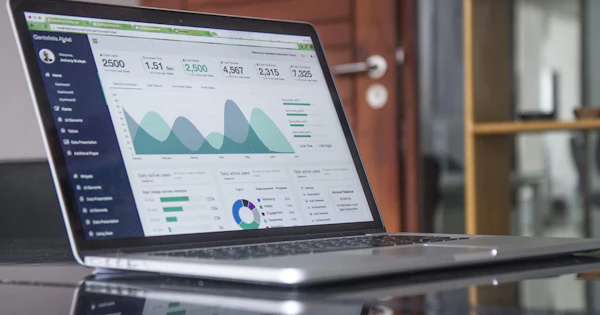
Marketing dashboard with GA4 and Google Ads: every number on one page
Visitors, leads, orders, ad spend and ROAS per campaign on one page, compared with the previous period. One link, nothing to set up.
 Features
Revenue from your CRM, shop and ERP in one dashboard: HubSpot, Shopify, Odoo and more
Google Analytics only sees what happens on the website. Orders by phone or email are missing. With a data connection, the real revenue from your system appears in the dashboard.
 Features
Website leads with their source in your CRM: HubSpot, Pipedrive, Brevo, Salesforce or webhook
Where did the lead come from? The CRM handover writes source, campaign and click ID into the CRM with every enquiry, without a form plugin.
 Features
Offline conversions: report sales from your CRM to Google Ads and Meta
Google Ads and Meta learn from what you report to them. If they only get form fills, they optimise for form fills. With offline conversions, they optimise for sales.